Airports and transport hubs
Watch restricted areas and keep crowd levels in check across passenger and staff areas.
How the sector deploys itMark the areas that matter across one CCTV camera or many, decide how many people each may hold, and be told the moment someone enters without permission or an area gets too full
What is watched
Interface simulation: an illustration of the workflow, not a live analysis
What it is
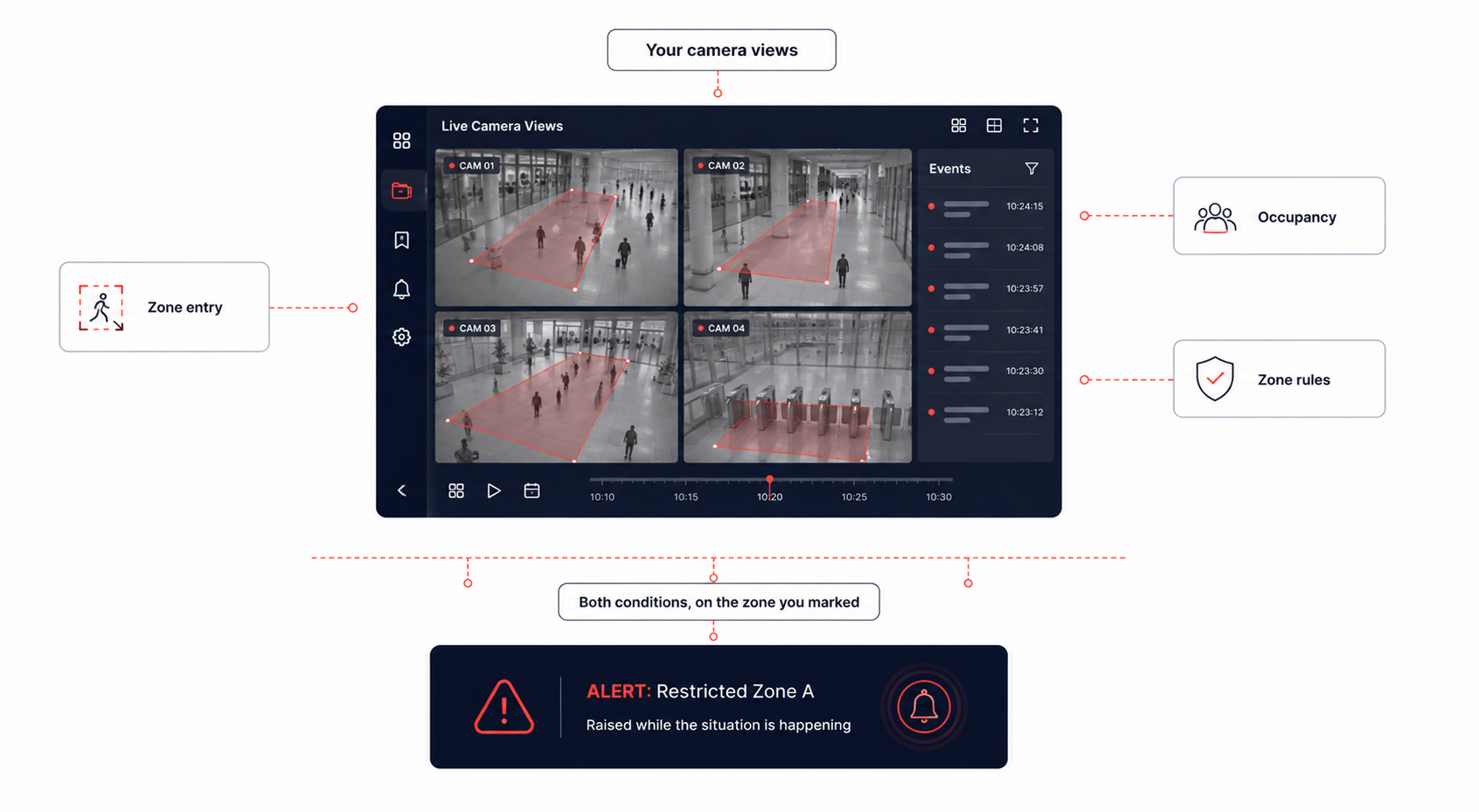
SecureZone Monitor keeps watch over the areas of a site that matter most, using the CCTV cameras already covering them. You mark an area as protected and set a limit on how many people may be inside it. An alert is raised when someone enters that area without permission, and again if the number of people goes past the limit you chose.
It takes the job of staring at a wall of CCTV screens and turns it into being told when something needs attention.
Every area carries its own rules, so what counts as an unauthorised entry and how many people are allowed is decided location by location.
Marked areas
Draw the parts of a camera view that should be treated as restricted
Entry alerts
An alert the moment a person enters an area without permission
Occupancy limits
Set how many people are allowed inside each area you watch
Cover a whole site
Watch several protected areas across a larger location at once
How it works
One CCTV camera or several cover the parts of the site that need watching.
The areas you have marked as protected are read together with the rules you set for each.
The software checks whether people are entering the areas you marked.
The count of people inside each area is checked against the limit set for it.
An unauthorised entry, or a count above the limit, raises an alert while it is happening.
Interface simulation: an illustration of the workflow, not a live analysis
One CCTV camera or several cover the parts of the site that need watching.
The areas you have marked as protected are read together with the rules you set for each.
The software checks whether people are entering the areas you marked.
The count of people inside each area is checked against the limit set for it.
An unauthorised entry, or a count above the limit, raises an alert while it is happening.
Product exclusiveness
Protected areas watched continuously
Interface simulation: an illustration of the workflow, not a live analysis
Market comparison
Watch restricted areas
Mark specific protected areas
Notice an unauthorised entry
Set a limit on people in an area
Alert when a limit is passed
Cover several cameras
Alerts while it is happening
Watching without a break
Different rules per area
The architecture
Zones and their rules
Unauthorised entry, or a count above the limit, raises an alert while it is happening.
Use cases by sector
Watch restricted areas and keep crowd levels in check across passenger and staff areas.
How the sector deploys itProtect restricted locations by alerting security teams the moment someone enters an area without permission.
Watch server rooms, executive floors and other places only certain staff should be able to reach.
Protect restricted sections and keep access to sensitive areas under control.
Watch hazardous or restricted working areas and alert teams when too many people are in one place.
Keep track of restricted storage, loading bays and anywhere access or numbers need controlling.
Watch how full selected areas are getting and alert organisers when numbers pass the level allowed.
Deployment strategy
01 · Connect the cameras
Interface simulation: an illustration of the workflow, not a live analysis
SecureZone Monitor works with a single CCTV camera or with several covering different parts of a site. Each camera can watch one area or more than one, depending on what the organisation needs.
Which places are protected, how full each is allowed to be, and how quickly a team learns something has gone wrong
An area you draw inside the CCTV view that should be treated as secure or restricted. That area is then watched continuously and checked for people entering it.
Two things. An alert is raised when a person enters a protected area without permission, and when the number of people in a watched area goes above the maximum you set for it.
Yes. Each area can carry its own rules, so you decide which places need protecting and how many people are allowed in each of them.
Yes. Alerts arrive as the situation unfolds, rather than leaving your team to find the problem later by going back through recordings.
One or many. Several cameras can cover different protected areas at the same time, which suits larger sites, and each camera can watch one area or several depending on what you need.
Three things. Connect the CCTV cameras covering the areas you want watched, draw the area to be treated as protected, and choose the maximum number of people allowed inside it.
The rest of the line
Where it runs
Each sector page covers the threat model, the controls, and the regulators that apply.
Bring your own footage. We will run it through the Adaptive Cognito Engine and walk you through the findings.